
From generation to editing,all in one place.

Create video, images, voice and music with AI, then edit what you generate on the timeline and finish it as one video.

Contact us

Generate

Turn your ideas into any kind of content.

Use text and images to make video and images,
and generate the voice and music you need.

LTX-2.5 · MiniMax H3

Video

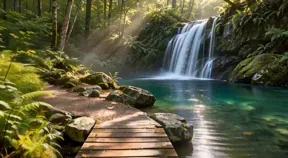
Make video from text and images,
set start and end frames, or continue a scene.

Description

Describe the scene you want in words. It becomes a video
that captures the mood and movement.

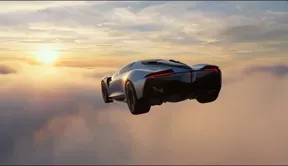
A silver car glides slowly through sunrise-lit clouds while the camera follows smoothly from behind.

AI enriches your input with mood and camera movement to turn it into a more detailed prompt.16:915 s

FLUX.2 klein 9B·4B · SenseNova U1.5 · Krea 2 Turbo

Image

Generate the scenes and characters you want, and use them as
reference images for video.

  • Text to image
  • Set people, products and style with references
  • Instruction edits and masked touch-ups
  • Text inside images
  • Turn generated images into video
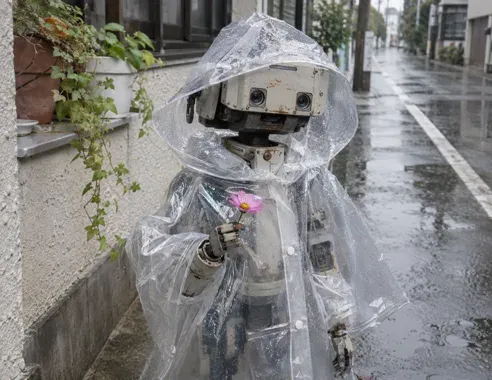
A person in a clear raincoat on a rainy street

MiniMax Music 3.0

Music

Pick a genre, mood and vocals, and AI writes the lyrics and arrangement notes. Refine until it feels right, then generate.

  • 133 genre tags
  • Automatic lyrics
  • Section tag editing
  • Up to 5 min
  • Wistful acoustic pop for a rainy day

  • Epic cinematic BGM

  • Upbeat dance for a drive

Qwen3-TTS

Voice

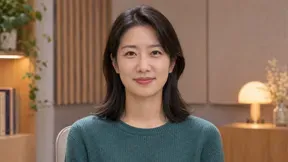
Turn a script into speech in the voice you want, and use
reference voices you have permission to use.

  • Studio voice gallery
  • Clone my voice
  • Korean · English · Japanese · Chinese
  • Make video from generated voice
  • You did great today. Have a restful night.

    Korean · Calm tone

  • Welcome! Experience the power of AI voice generation.

    English · Narration

Timeline editing

Edit right where
you generated.

No need to move generated content to another editor. Edit and manage it all in one project.

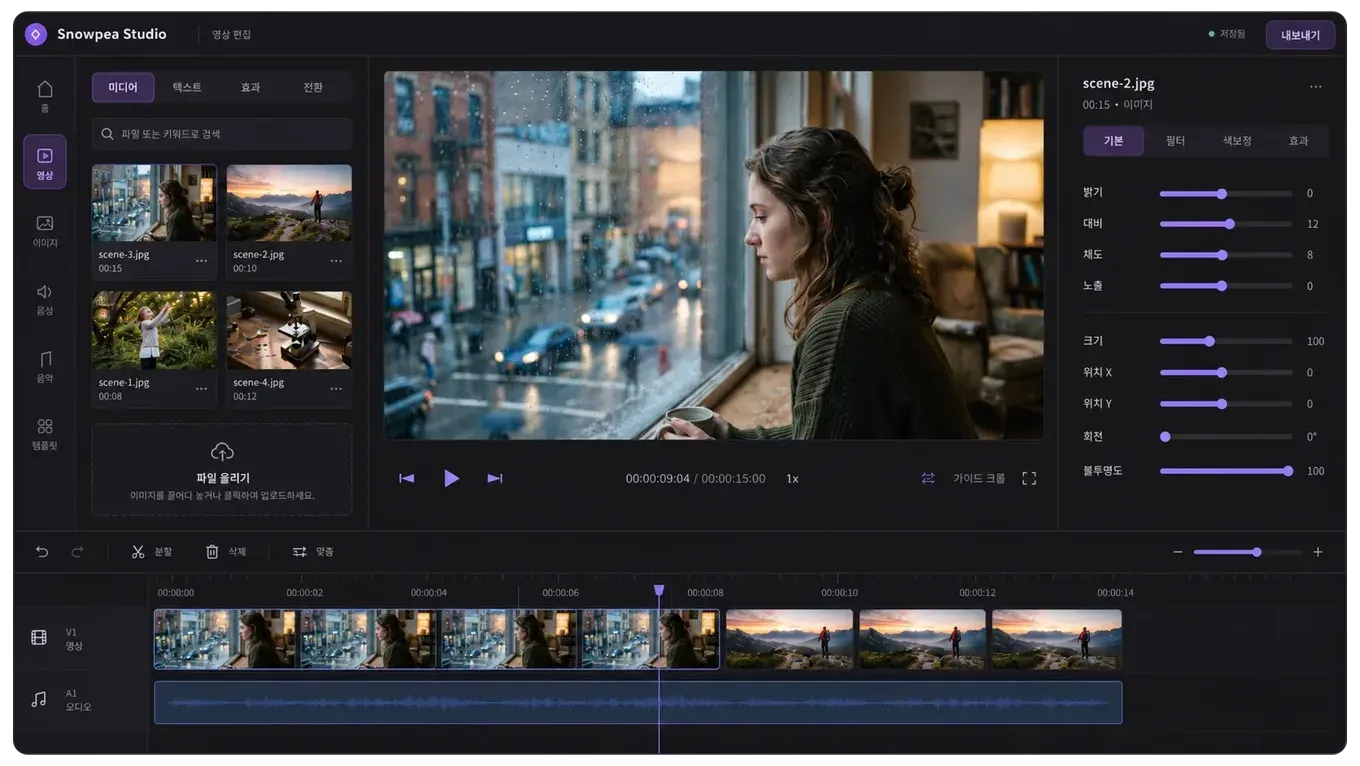
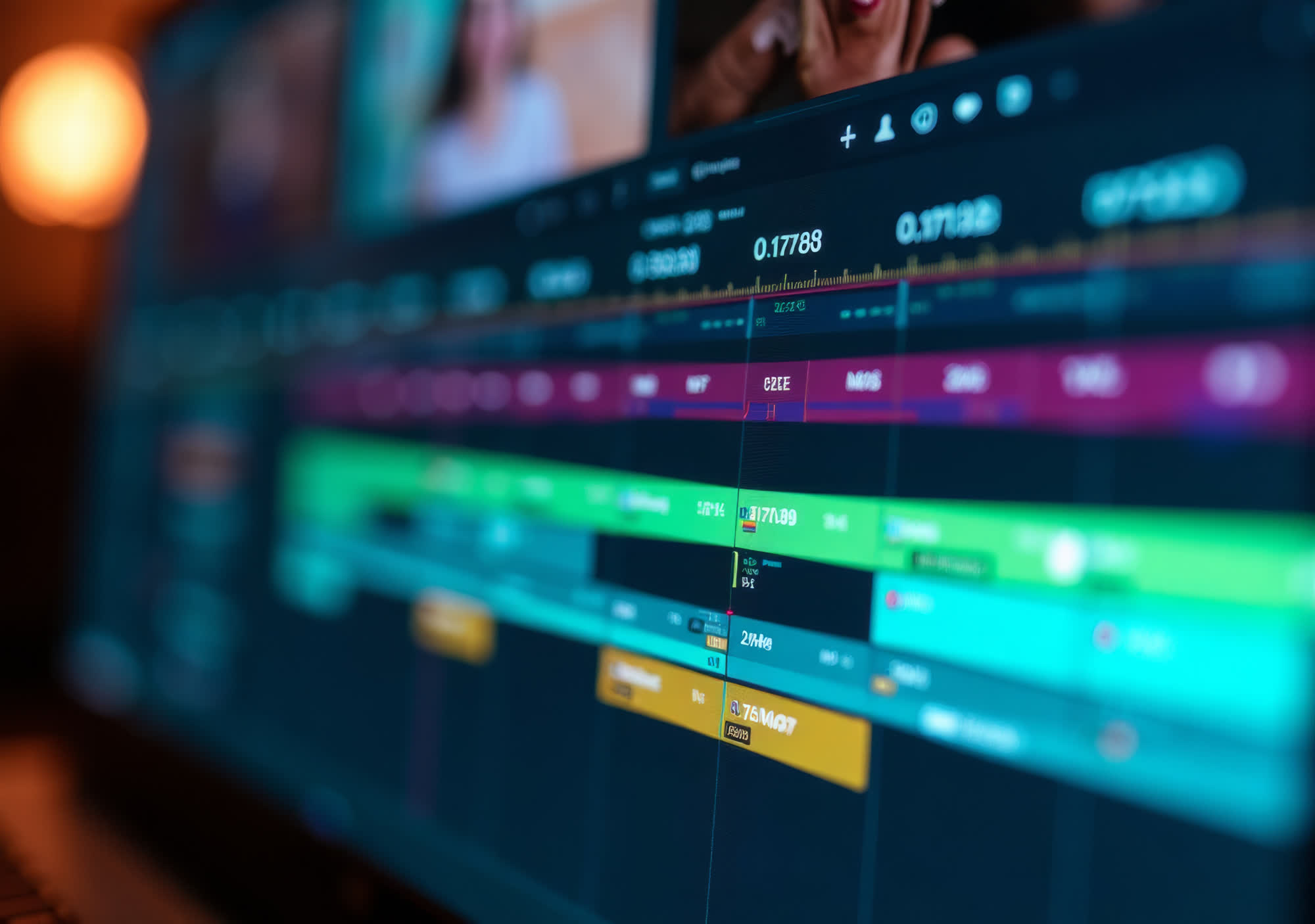
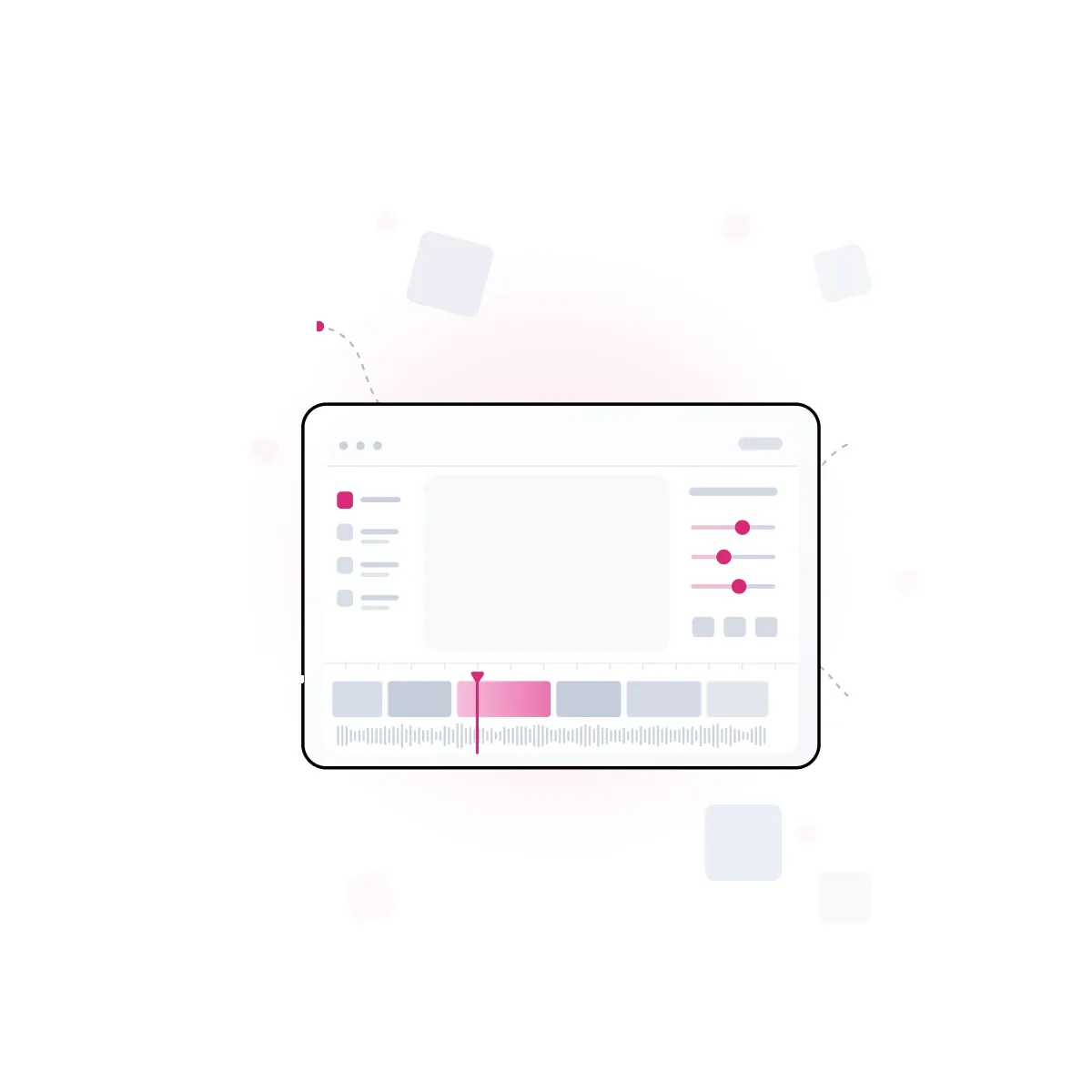
SnowPea Studio video editing workspace
  • Edit right on the timeline

    Place generated video and images, and adjust clip length and order to finish the scene.

  • Polish captions to fit the video

    Edit the script and adjust caption timing and style to match the video.

  • Edit voice and music together

    Place generated voice and background music on the timeline and adjust length and timing.

Studio AI Agent

Hand the next task to the agent

From generating video and images to building an edit project,
ask Studio's AI agent in plain words
and follow its progress.

Try asking

  • "Make a 10-second video from this photo."
  • "Continue with the next scene in the same mood as the one I just made."
  • "Gather the selected videos into an edit project."
  • "Make a 15-second short promo introducing the cafe's new menu."

Production flow

From idea to finished video

You don't have to hop between tools, so the flow never breaks.

Generate

  1. Describe the scene, pick references

    Describe the scene in text
    or choose images to reference.

  2. Choose model, ratio and length

    Set the generation model,
    aspect ratio and video length for your goal.

  3. Review and pick results

    Review the generated results
    and pick the clips to use in your edit.

Edit

  1. Build the timeline

    Arrange the chosen video and images in order and refine the scenes.

  2. Adjust captions and audio

    Match dialogue, voice and caption style to the flow of the video.

  3. Export

    Check the finished video and export it in the form you need.

WHY SNOWPEA STUDIO

Editing starts the moment you generate.

Keep your production flow going inside one project, without jumping between services.

Have a video in mind?

Turn your idea into a finished video with SnowPea Studio.

Contact us